Everything the editor does, one line each.
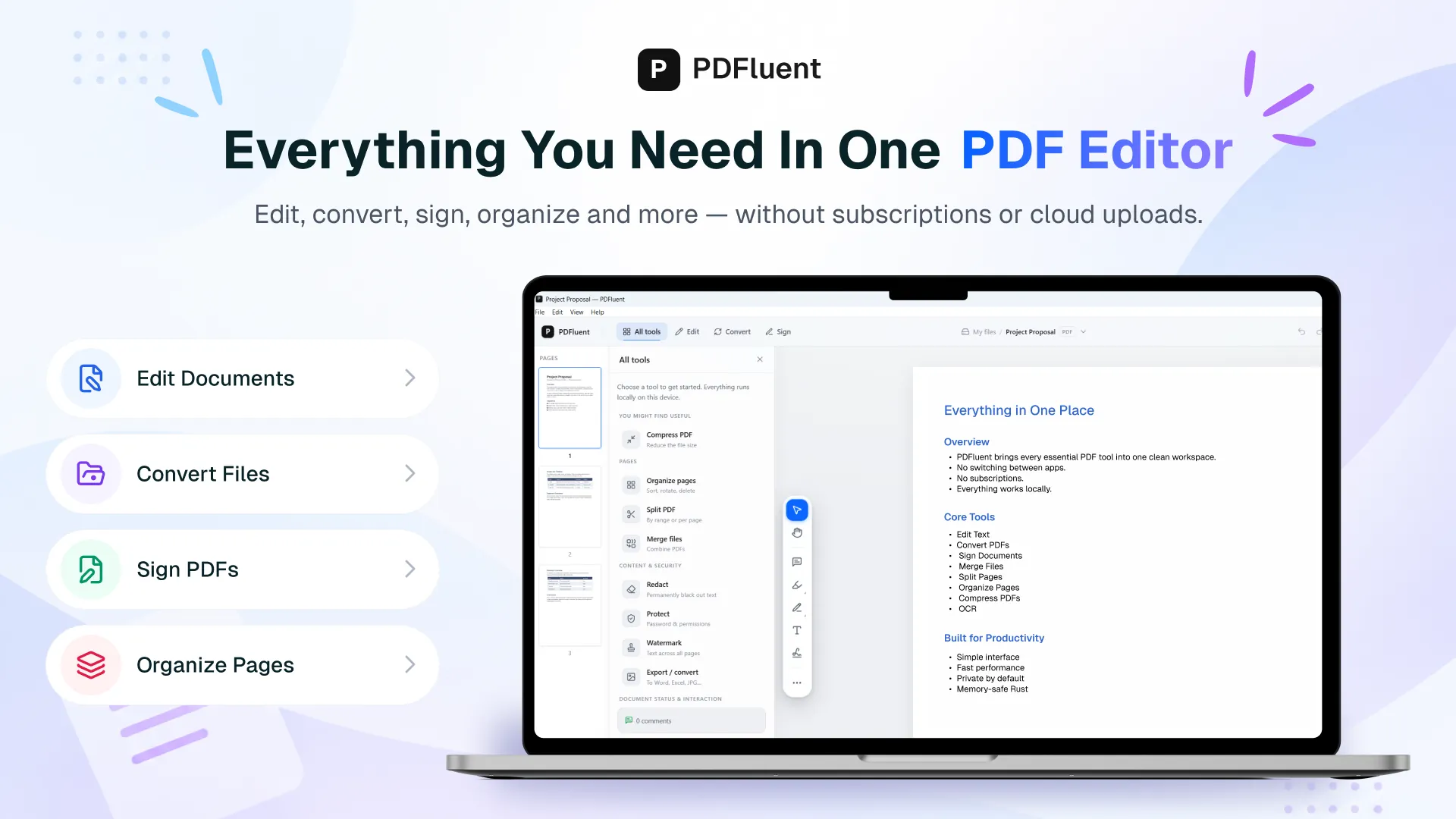
Put the document together
Merge PDFs
Combine several PDFs into one file, in the order you drop them in.
Split a PDF
Cut a document into separate files, either one file per page or by a page range you type.
Extract pages
Select the pages you want and save just those as a new document.
Reorder pages
Drag pages into the order you want and apply the new order to the file.
Rotate pages
Turn one page or a whole selection left or right.
Delete pages
Remove pages you do not need, one at a time or as a selection.
Insert another PDF
Drop the pages of a second document in at the point you choose.
Change what the file is
Compress a PDF
Make the file smaller before you send it, without uploading it anywhere first.
Run OCR on a scan
Turn a scanned page into text you can select and search, on your own machine.
OCR is built into the editor and runs on this computer, with no download. It reads English, Dutch, German, French, Spanish and Italian.
Convert to PDF/A
Produce the archival format that record-keeping rules ask for.
Validate PDF/A
Check a document against the archival standard and see what it says, in the same window.
Export
Open the export dialog from the toolbar, the command palette, or Ctrl+E.
PDF to Word
Convert PDF to Word, Excel, PowerPoint, image, or PDF/A.
Tables may not keep their layout when exported to Word.
Sign and check signatures
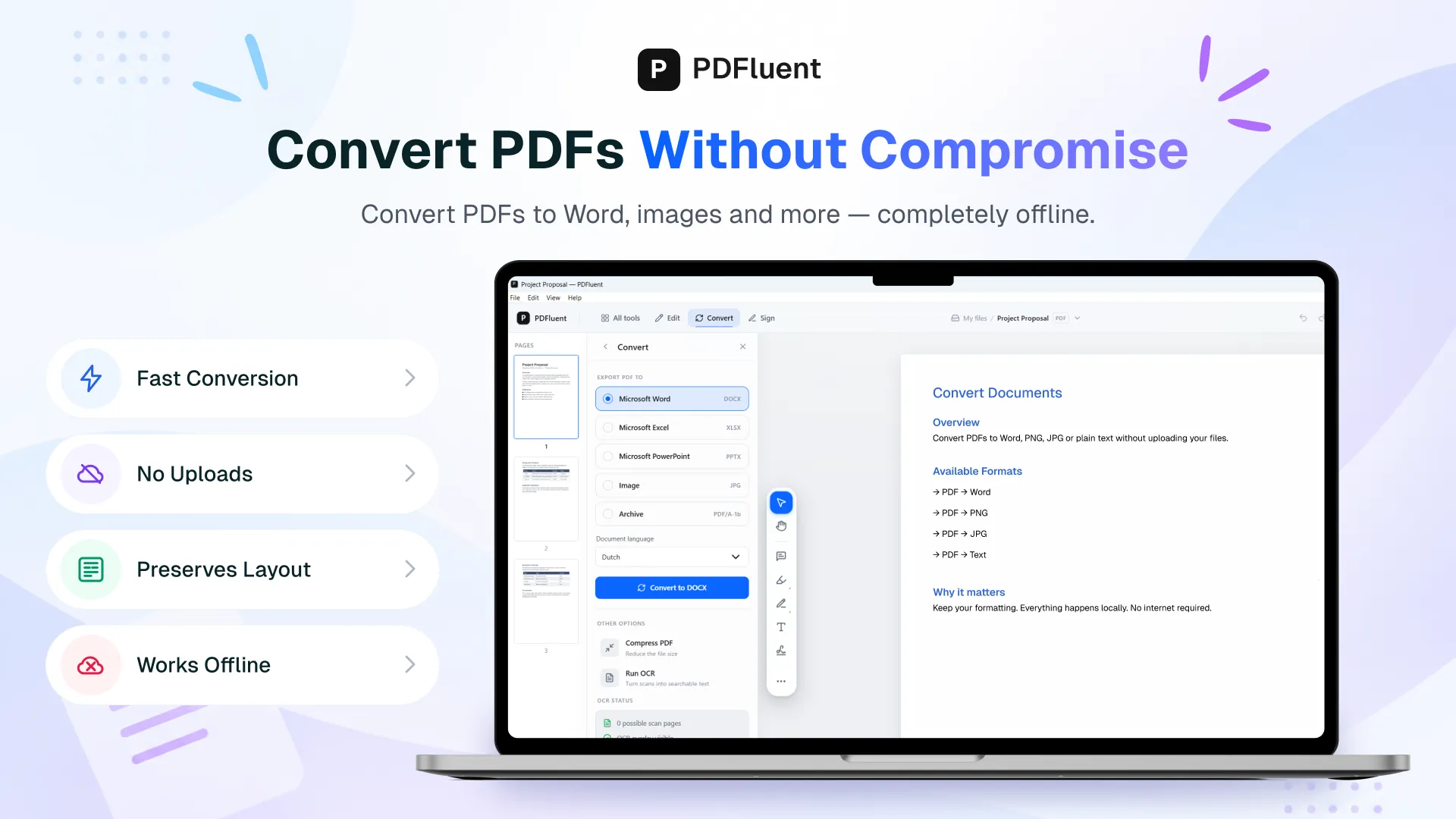
Sign with your own certificate
Pick a .p12 or .pfx file you already have and sign the document with it, on this machine.
The signature is an invisible PAdES signature without a timestamp.
Check the signatures in a file
See which signatures a document carries and whether they still hold.
Control what leaves the building
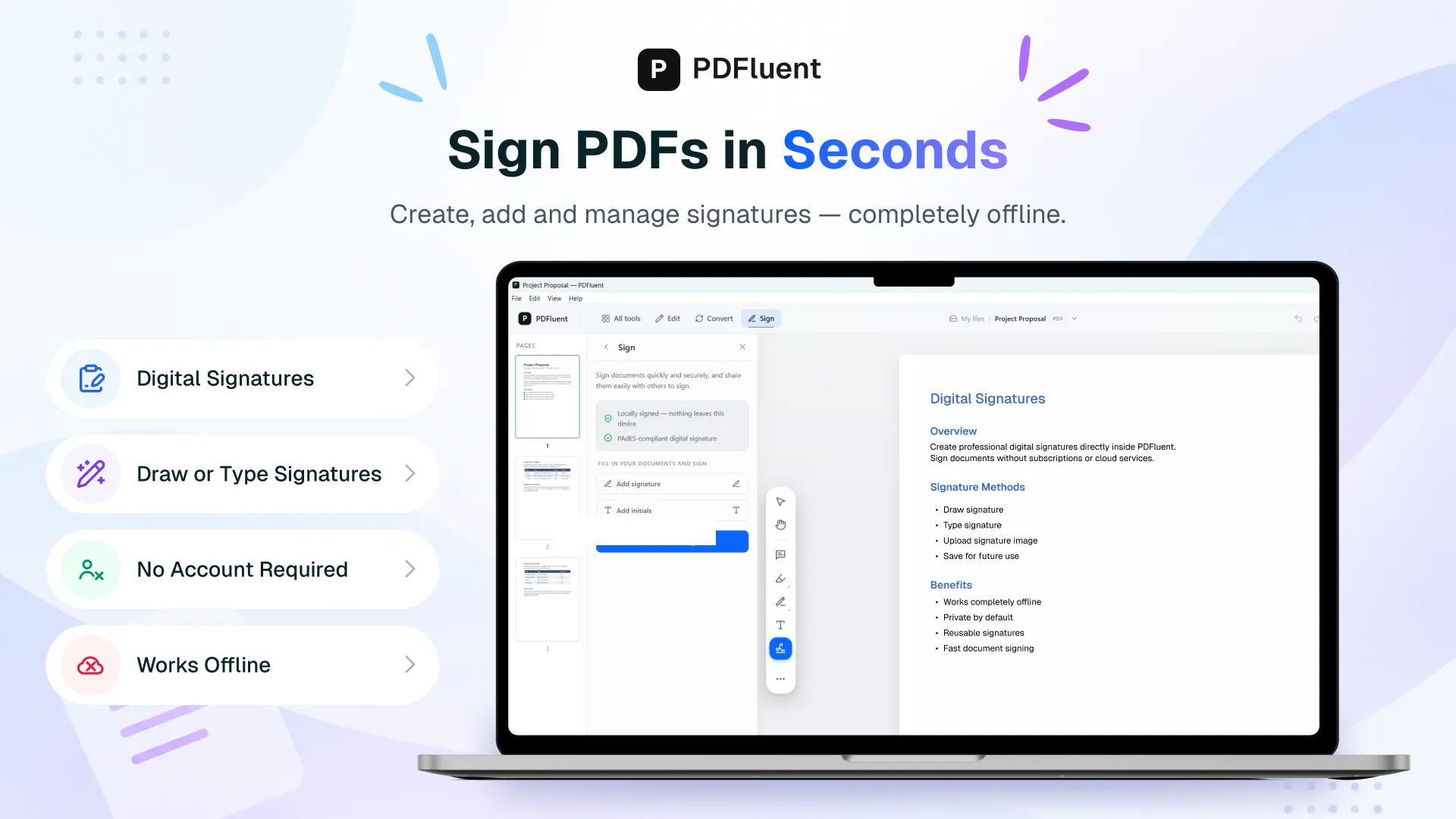
Redact
Black out a passage so the words underneath are gone from the file, not covered up.
Password-protect a PDF
Set or remove a password and the permissions that travel with it.
Watermark
Put a text watermark across every page.
Edit the document metadata
Change the title, author and the rest of what a reader's PDF viewer shows in Properties.
Mark up and annotate
Highlight passages
Highlight a passage on a page. The highlight is saved into the PDF as a standard annotation, so other PDF readers show it too.
Draw on a page
Freehand ink, straight onto the document.
Underline and strike through
Mark a passage the way you would on paper.
Add comments
Add a comment as a sticky note to a page.
Attach a file
Carry a second file inside the PDF, and take it out again.
Add stamps
Put a stamp on a page, such as Approved or Draft.
Read an invoice
Pull the fields out of an e-invoice and check them against the rules for one.
Read a long document
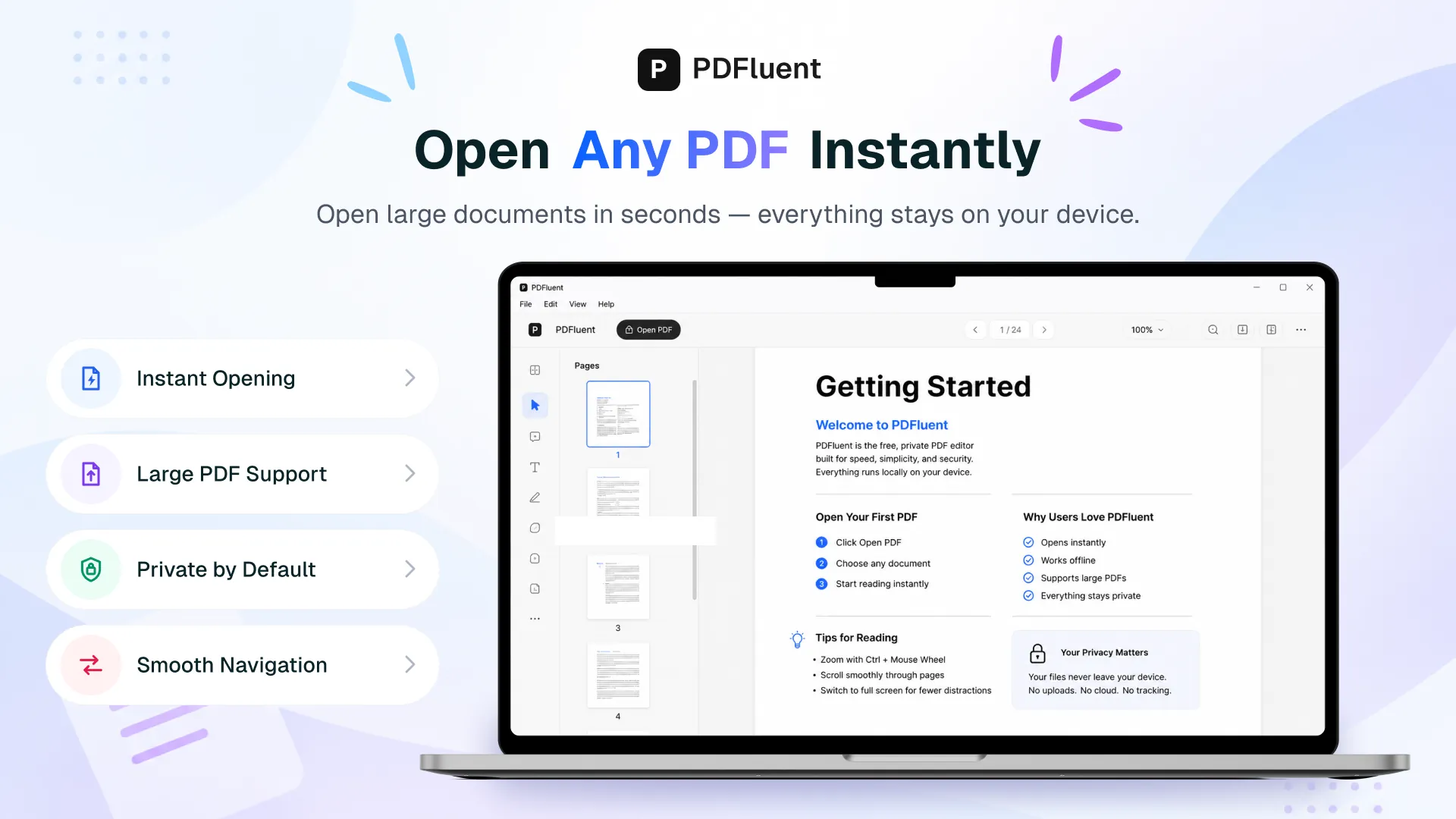
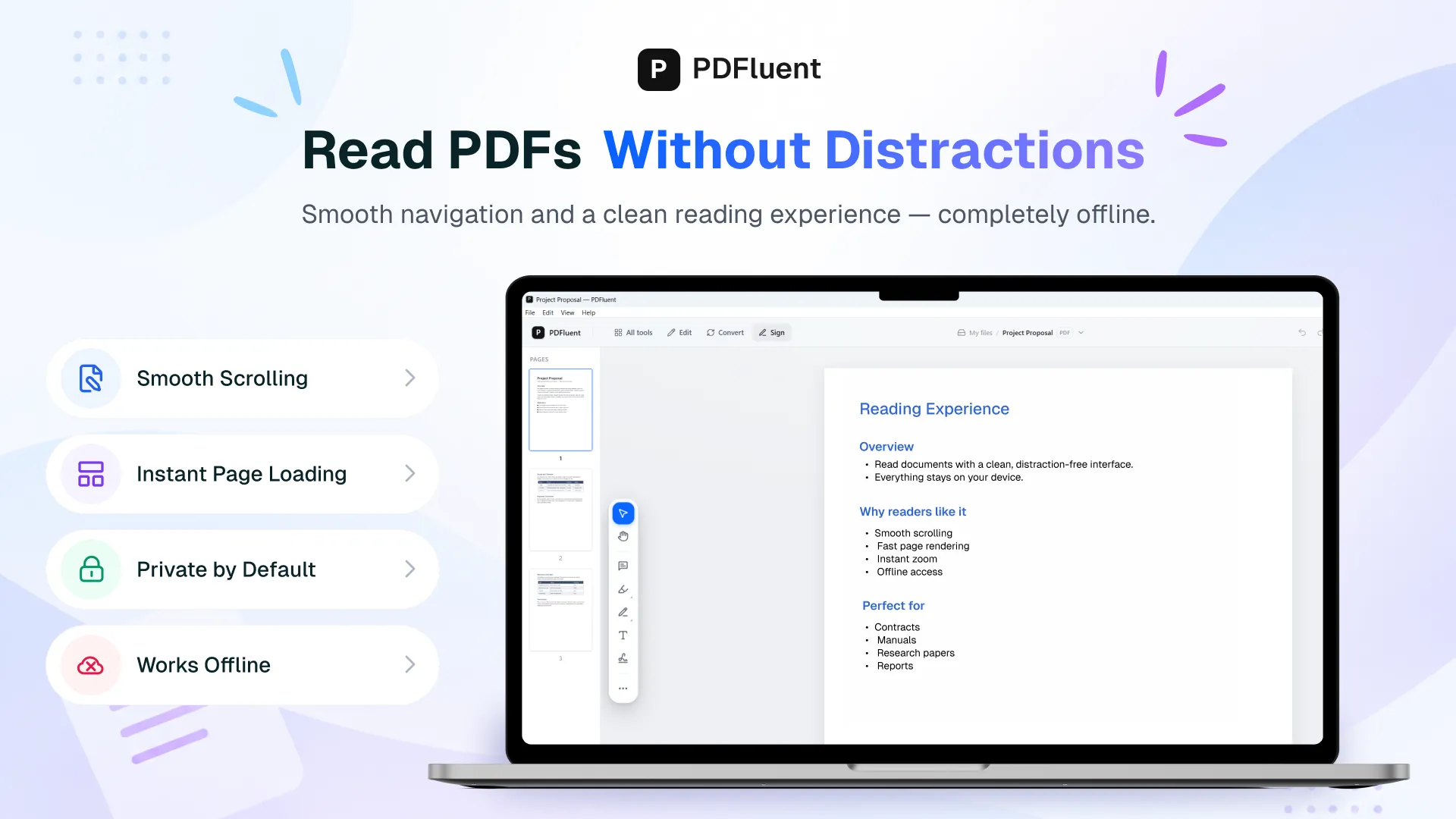
Page through the document
First page, last page, next, previous — by button, by arrow key, or by typing a page number.
Jump by the outline
Use the document's own bookmarks to move between chapters.
Search the text
Find a phrase in the document you have open.
Zoom and fit
In, out, back to actual size, or fit to the width of the window.
Full screen
Drop the interface and read the page on its own.
Read aloud
Have the page read to you by the voice your operating system already has.
Get through the work
Command palette
Ctrl+K, then type the name of the thing you want; the shortcut sheet lists the rest.
Switch modes
Read, review, organise, convert, sign, forms and protect are separate rooms, and the number keys move between them.
Several documents at once
Keep more than one document open, each in its own tab with its own undo history and its own unsaved changes. Opening a file that is already open brings its tab to the front.
Documents that are not on screen and have nothing unsaved are closed in the background to save memory. They open again from their file, on the page you left, when you select their tab.
There is a limit on how many documents can be open at once.
Undo and redo
Step back out of anything you just did to the document.
Save and save as
Write the document back where it came from, or somewhere else.
Print
Send the open document to a printer.
Edit text and objects
Edit text in place
Click a line and rewrite it. Fix a typo in a contract or update a figure without exporting to another tool and back.
Text is edited one line at a time. A paragraph that runs over several lines cannot be edited yet.
Change text size and colour
While editing a line of text you can change its size and colour.
Change the typeface
Changing the typeface of a line of text is not available yet; size and colour are.
Changing the typeface of a line is not available yet.
Add shapes
Add shapes such as rectangles and lines to a page.
Add images
Add an image to a page.
Edit existing images
Moving or replacing an image that is already in the PDF is not available yet.
Moving or replacing an image that is already in the PDF is not available yet.
Fill PDF forms
Fill standard forms
Type into the text fields of a standard PDF form (AcroForm) and save. The values are still there when the file is opened again.
Scripts inside a form, such as automatic calculations and validation, are not run.
Fill every field type
Every standard form field type can be filled: checkboxes, radio buttons, drop-down lists and list boxes, as well as text fields.
Open XFA forms
The editor opens XFA forms (dynamic forms used by some tax, government and bank paperwork) that many PDF readers show as a blank page or an Adobe Reader notice.
Fill XFA forms
Filling in XFA forms and saving them is being finished. Today XFA forms open for reading.
Scripts written in JavaScript run; scripts written in FormCalc do not, and the editor says so when a form has them.
Adding or removing repeating rows is not supported.
Form scripts run only with your permission
A form can carry scripts, such as calculations. They run only after you agree, for this document or always. Until then the form opens with its stored values and you can still fill it in.
Network, updates and your machine
Work offline
Opening, editing, signing, converting, redacting and saving a document all happen on your computer. None of it makes a network connection, and the document itself never goes over the network.
Check for updates
When it starts, the editor checks whether a new version exists. That automatic check can be turned off in Settings; the Check for updates command still works by hand.
Install updates
When a new version is available, the editor asks you first, then downloads the signed update and installs it.
Crash reports
Crash reports are off until you switch them on in Settings. A report contains the app version, the operating system, the interface language, what you typed and, for a crash, a cleaned-up stack trace, but never the document.
Help us improve PDFluent
Help → Help us improve PDFluent sends a report only when you press Send. You see the system details first and can leave them out; the open document and your email address go along only if you choose.
Interface languages
The interface is available in 27 languages and starts in the language of your system.
Mac and Windows
The macOS app is one universal build that runs natively on Apple Silicon and Intel Macs, signed and notarised by Apple. There is also a Windows version.
Large files
The editor sets no page or file-size limit of its own. The PDF engine enforces safety limits against malicious files; those are listed on the security page.
Where this list comes from
The editor's code repository holds one file that lists every promise the editor makes, with the journeys it covers and the tests that prove it on macOS and Windows. The editor's build fails when a promised feature's test does not pass on either platform. Features that are in the app but whose tests are still being written are on a fixed list that can only get shorter.
This website reads a published copy of that file. The website's build fails if the copy was edited by hand or if a page states a feature the file does not contain.
Source: product/editor-features.json at commit b29ec72ae.
What the editor does not do
- Making a PDF out of a Word file. It converts out of PDF, not into it.
- There is no compare view for comparing two versions of a document side by side.
- Search for personal data such as IBANs, email addresses and phone numbers, and redact every match at once.
- The editor does not edit a paragraph that runs over several lines. Text is edited one line at a time for now.
- The editor does not add trusted timestamps to signatures, such as long-term validation or PAdES-LT. Signing needs no timestamp server, so the document stays on your machine.
- The editor does not do unattended processing. That includes batch, command-line, watch-folder and server work. The separately licensed PDFluent SDK is for that.
- The editor does not include an AI assistant. Translation and summaries are not available.
- Document storage. Your files stay where you put them; there is nothing to store them in.
- Capture from a scanner or a camera. Bring a file that already exists.
- A searchable library across your documents. Documents open in tabs, but no library searches across them.
- Collaboration, review routing, or shared comments between people.
All 57 of them, free.
Free for everyone, including at work. No account, no upload, no time limit.