How to convert the tables in a PDF to an Excel spreadsheet
Open the PDF in PDFluent Editor, click "Convert", choose "Tables to Excel (Preview)", press "Export" and save the .xlsx file. It is for anyone with a PDF report, price list or statement who needs the table as a spreadsheet, and the editor is free for everyone, including commercial use, with no account. Only the tables go into the sheet, and the feature is marked Preview, so check the numbers before you rely on them.
You have a PDF with a table in it: a report, a price list, a statement. You need those rows in a spreadsheet so you can sort, filter or add them up. Retyping them takes time and invites mistakes.
This guide shows how to export the tables in a PDF to an Excel file with PDFluent Editor 1.1, using the labels from the app. It also covers what the export leaves out and what to check in the sheet.
PDFluent Editor is a free desktop PDF editor for macOS and Windows. It is free for everyone, including at work, and you do not need an account.
Export PDF tables to Excel, step by step
The steps use PDFluent Editor 1.1 on a Mac. The export writes a new .xlsx file. Your PDF stays as it is.
Open the PDF and click Convert
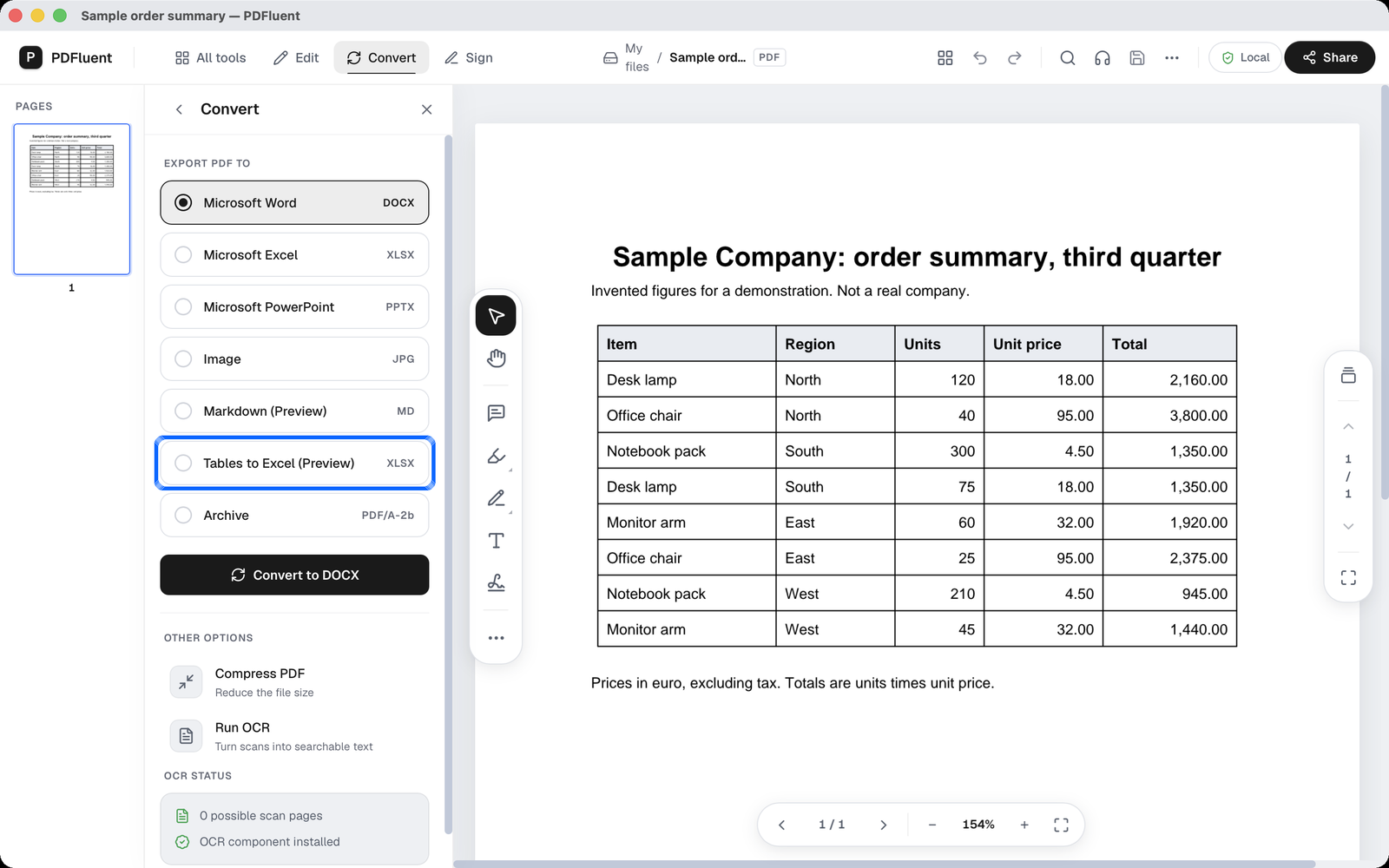
Open the PDF in PDFluent Editor and click "Convert" in the top bar. A panel opens with the formats you can export to. Click the row "Tables to Excel (Preview)", marked XLSX.
Press Export
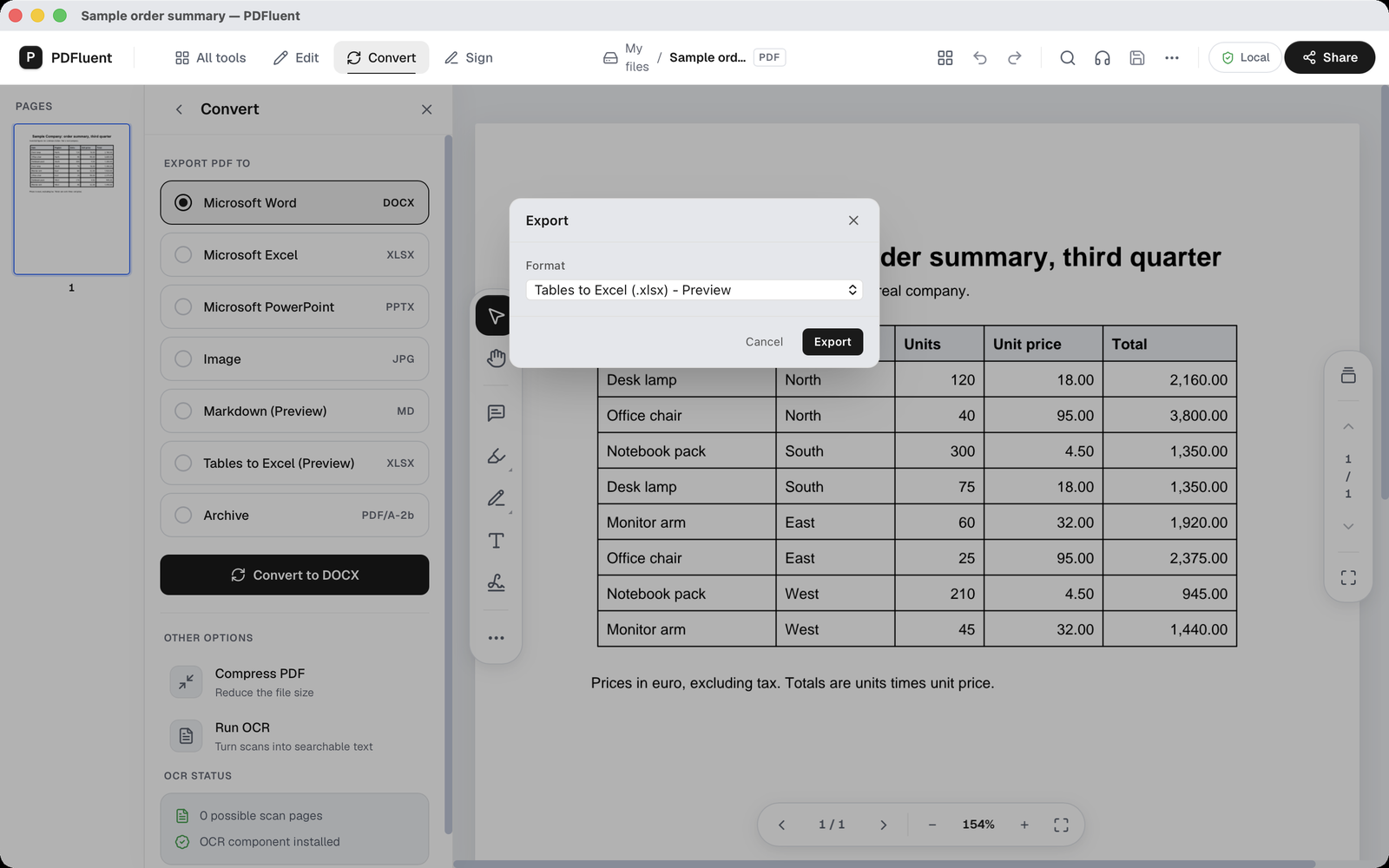
The "Export" window opens straight away. The format reads "Tables to Excel (.xlsx) - Preview". Press "Export". Press "Cancel" if you want to stop.
Name the file and save it
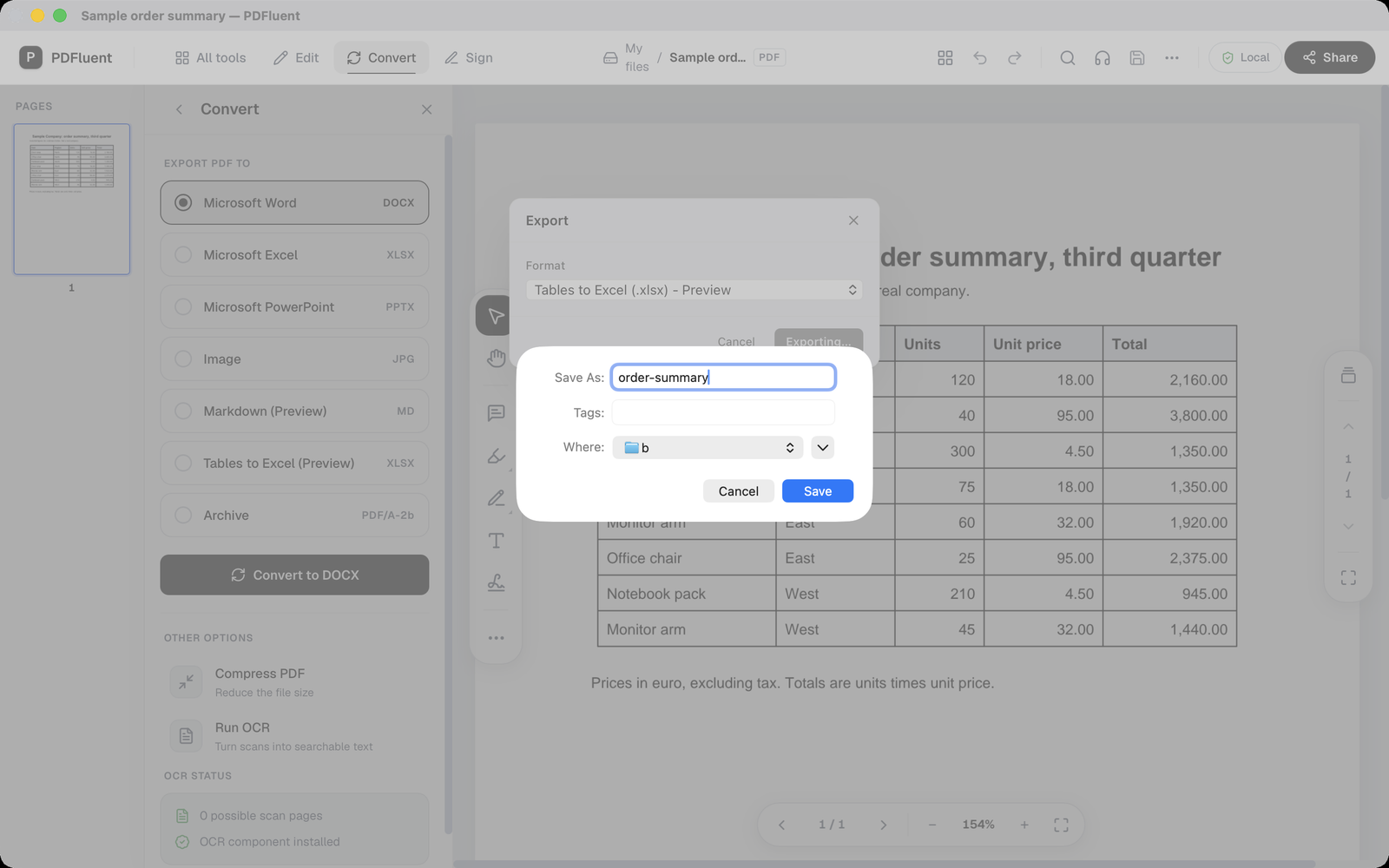
Your Mac shows its save window, with the name Untitled filled in. Type a name, choose a folder and press Save. The editor adds .xlsx to the name.


PDFluent Editor is free for everyone, including commercial and business use. There is no licence key, no trial and no subscription, and you do not need an account.
What it does and does not do
- It exports tables, not the whole PDF. Headings, paragraphs and notes around a table stay out of the sheet. A PDF without tables gives you an empty sheet.
- It is a Preview feature. The app marks it Preview, so check the result before you use it.
- It works one way. It writes a new .xlsx file from the PDF. It does not change the PDF, and edits in the spreadsheet do not go back into the PDF.
- It does not promise to keep the look of the table. Expect rows and columns of values, not the colours, lines or fonts of the PDF.
- A scanned PDF is a picture of a page, so there is no text in it yet. Run OCR first to make it searchable. We do not promise that a scanned table comes out as a table in Excel after that.
- On macOS, your documents never leave your device, and PDFluent Editor works without an internet connection.
In our test we used a one-page order summary we made up, with one ruled table of 5 columns (Item, Region, Units, Unit price, Total), a header row and 8 data rows. This is what went into the sheet and what did not.
| Part of the PDF | In our test |
|---|---|
| Header row and the 8 data rows | In the sheet, same order, 9 rows by 5 columns |
| Plain numbers such as 120 or 18.00 | In the sheet as numbers you can calculate with |
| Amounts with a thousands comma such as 2,160.00 | In the sheet as text, so check them |
| Title, the sentence under it, the note under the table | Not in the sheet |
| The PDF itself | Not changed |
The file had one sheet, named "Table 1 (p1)". One test on one table is not a promise for every PDF, which is why the next section matters.
PDFluent Editor is free for everyone, including commercial use, and your documents stay on your computer.
How to check the spreadsheet
- Open the .xlsx file and put it next to the PDF. Count the rows and columns and compare them with the table in the PDF.
- Read the first row and the last row. If they match, the rows in between are probably in place, but scan them anyway.
- Check which cells hold numbers and which hold text. A text cell is often aligned to the left and is skipped by a sum. Amounts with a thousands comma are the ones to watch.
- Convert those text cells to numbers in your spreadsheet app before you add anything up.
- Recalculate the totals in the sheet and compare them with the totals printed in the PDF.
Free, at home and at work
PDFluent Editor is free for everyone, including commercial use. No account, no licence key, no trial. Version 1.1 runs on macOS and Windows.
Frequently asked questions
Can I convert PDF tables to Excel for free?
Yes. PDFluent Editor is free for everyone, including commercial use, and needs no account. Click "Convert", choose "Tables to Excel (Preview)", press "Export" and save the file.
Does it convert the whole PDF to Excel?
No. Only the tables go into the sheet. Headings, paragraphs and notes stay out. A PDF without tables gives an empty sheet.
Can I calculate with the numbers in the sheet?
In our test, plain numbers such as 120 or 18.00 arrived as numbers. Amounts with a thousands comma, such as 2,160.00, arrived as text. Convert those cells to numbers in your spreadsheet app before you add them up.
What about a scanned PDF?
A scan has no text to export. Run OCR in PDFluent Editor first to make it searchable and copyable. We do not promise that the table then comes out as a table in Excel, so check the result.
Does exporting change my PDF?
No. The export writes a new .xlsx file in the folder you choose. The PDF stays as it is.
Does this work on Windows?
PDFluent Editor 1.1 is available for Windows as well as macOS. The steps and screenshots in this guide were taken on a Mac.
Keep reading
Building software? Get the SDK.