How to copy text from a PDF
Open the PDF in PDFluent Editor and drag across the text you need. Click "Copy text" in the small toolbar above the selection, then paste it in any other app. This is for anyone who needs a few lines from a PDF in an email, a document or a form. The editor is free for everyone, including commercial use, and you do not need an account.

You have a report as a PDF and you need two sentences from it in an email. Typing them over takes time and adds mistakes. You want to select the text and paste it.
This guide shows how to copy text from a PDF in PDFluent Editor 1.1.2, with the real labels from the app. It also covers scanned pages, where there is no text to select yet. PDFluent Editor is free for everyone, including at work, and you do not need an account.
Copy text from a PDF, step by step
The steps and screenshots use PDFluent Editor 1.1.2 on a Mac. The editor also runs on Windows. We used an invented quarterly report as the sample file.
Open the PDF
Open the file in PDFluent Editor. The select tool is the arrow at the top of the left tool bar. It is active when a file opens, so you can start selecting right away.
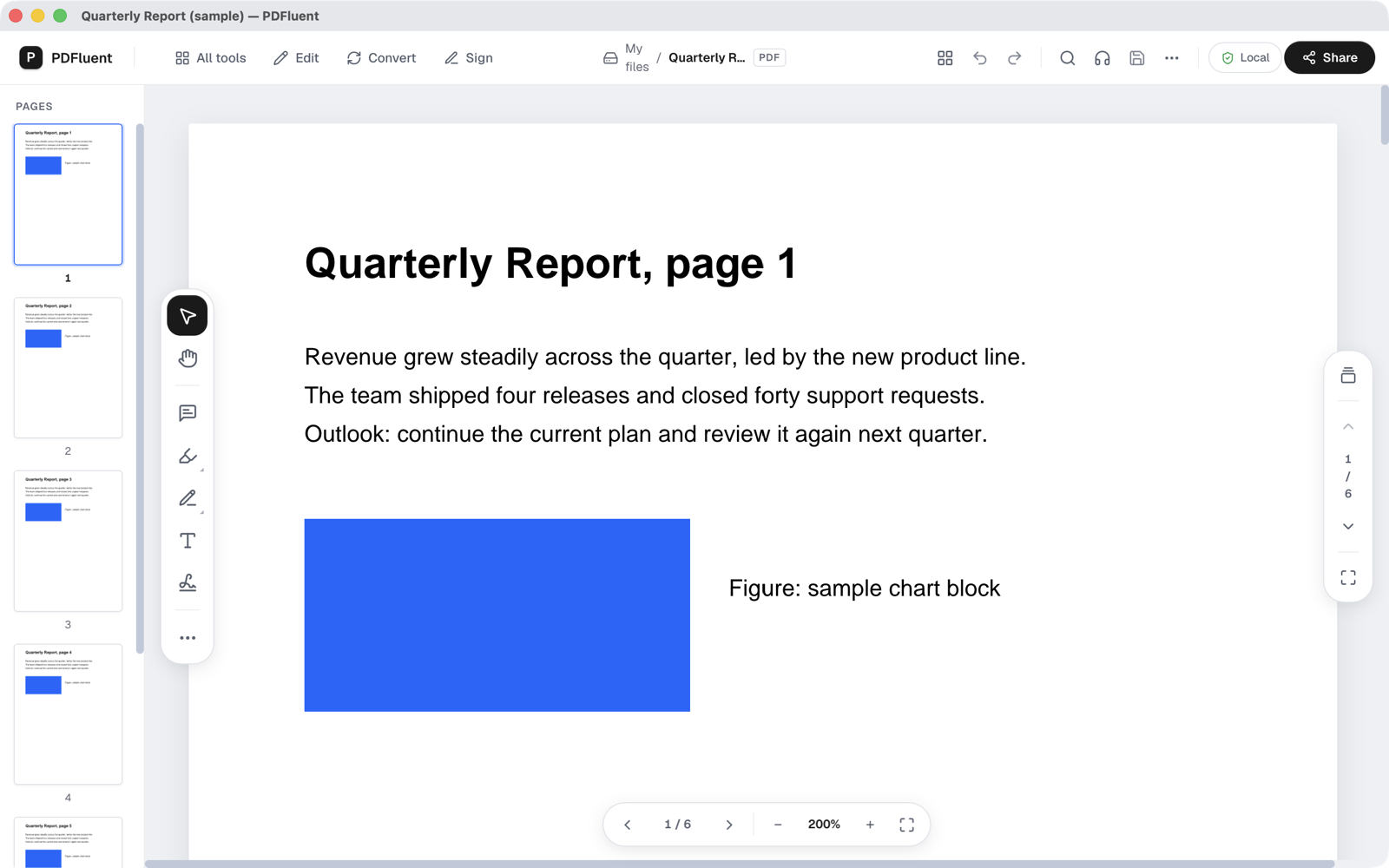
Drag across the text
Press and drag across the lines you want. The selected lines turn light blue. A small toolbar appears above the selection. It has four icons for comment, highlight, strikethrough and underline, and the button "Copy text".
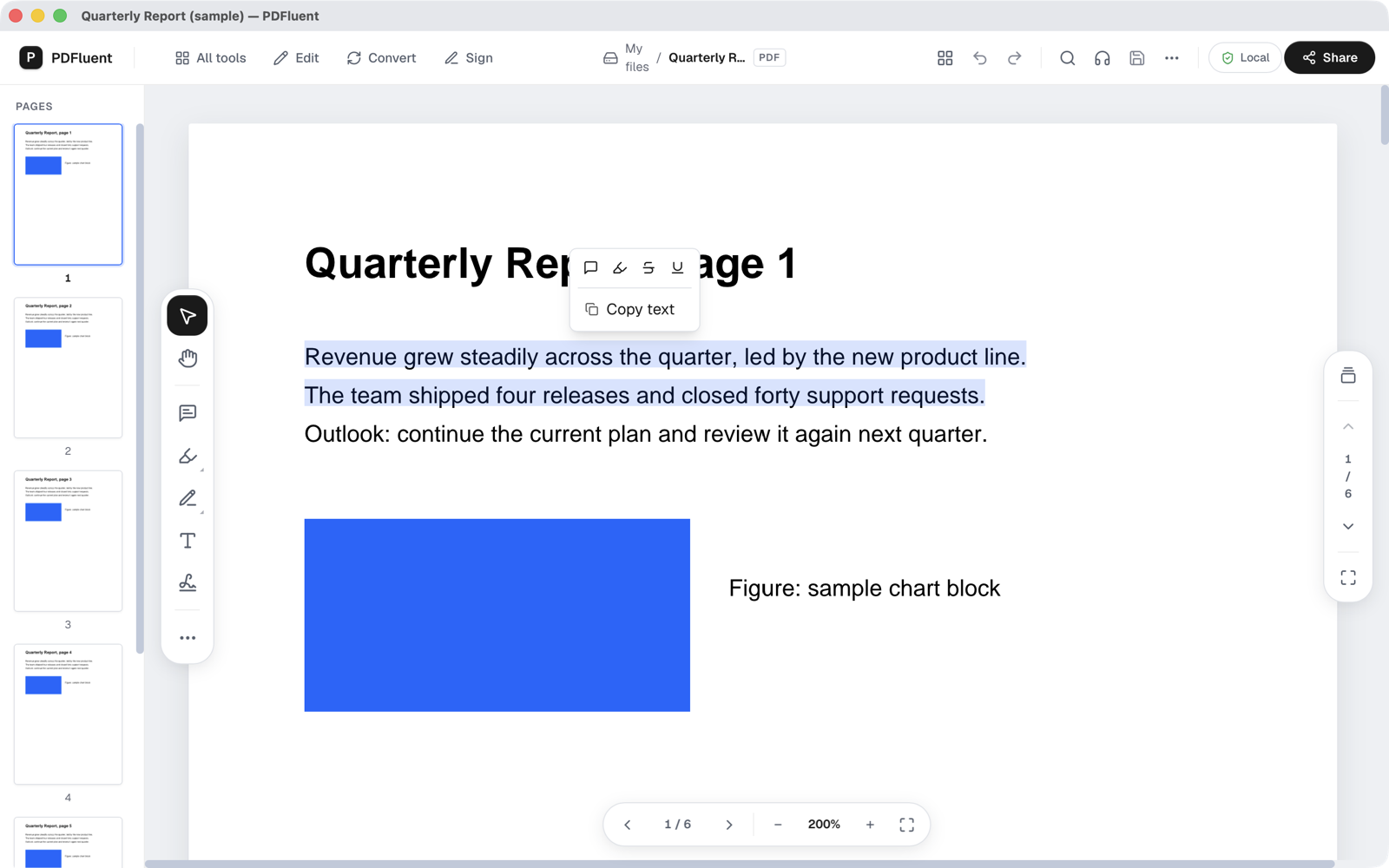
Click Copy text, then paste
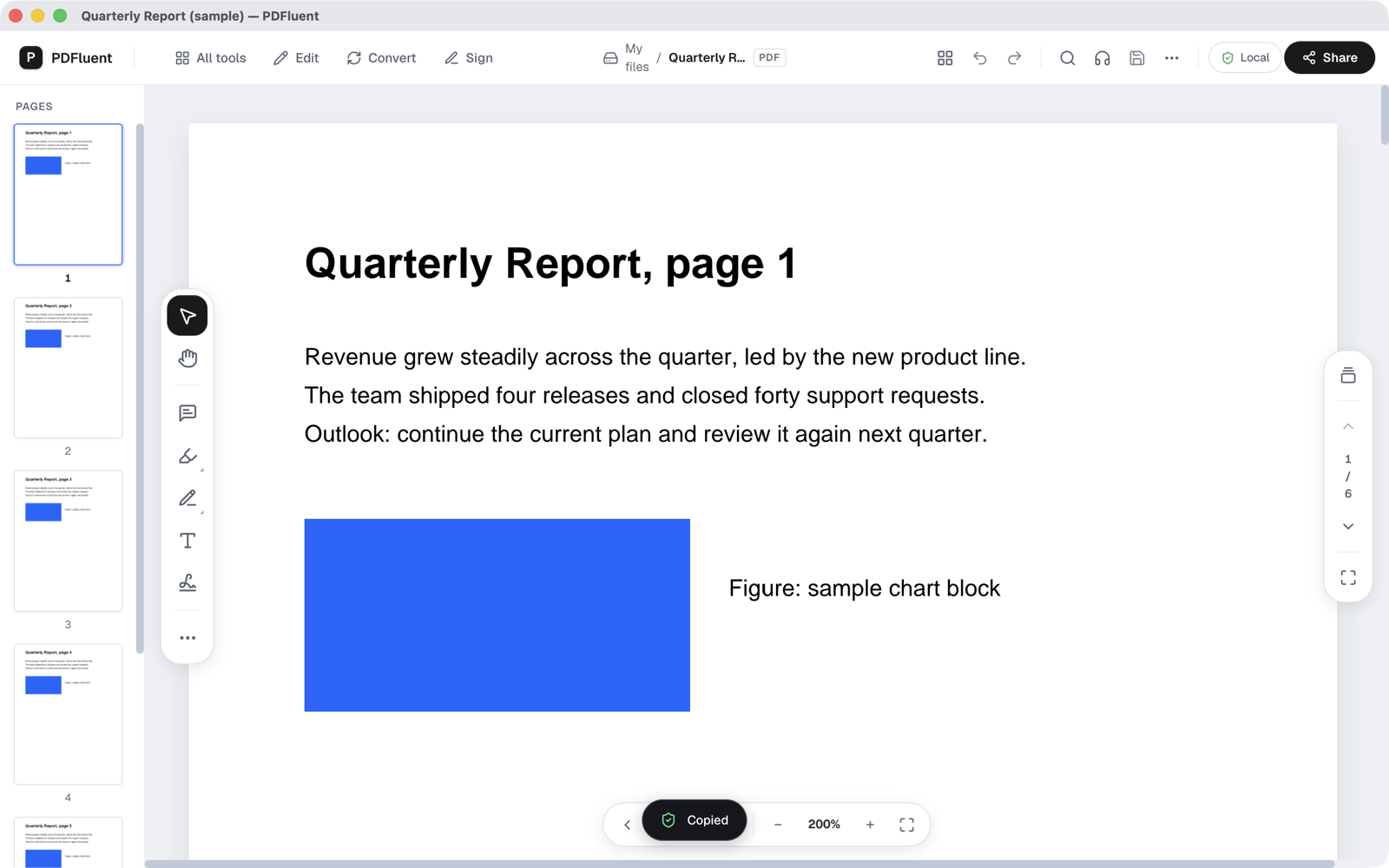
Click "Copy text". A dark message "Copied" appears at the bottom of the window. Go to the other app and press Command-V to paste.


In our test, a selection over two lines pasted as one line with nothing between the lines, for example "...product line.The team shipped...". After you paste, check each place where a line ended and add a space or a line break.
What it does and does not do
- It copies the text you select on the page, so you can paste it in another app.
- You can also search the file, and open several PDFs at once, each in its own tab.
- In our test, lines from a selection over two lines were joined with no space or line break between them. Check line ends after pasting.
- A scanned page is a picture of text. It has no text to select until you run OCR on it.
- We only checked pasting as plain text. We did not test whether fonts, sizes or layout carry over.
PDFluent Editor is free for everyone, including commercial use, and your documents stay on your computer.
Copy text from a scanned PDF
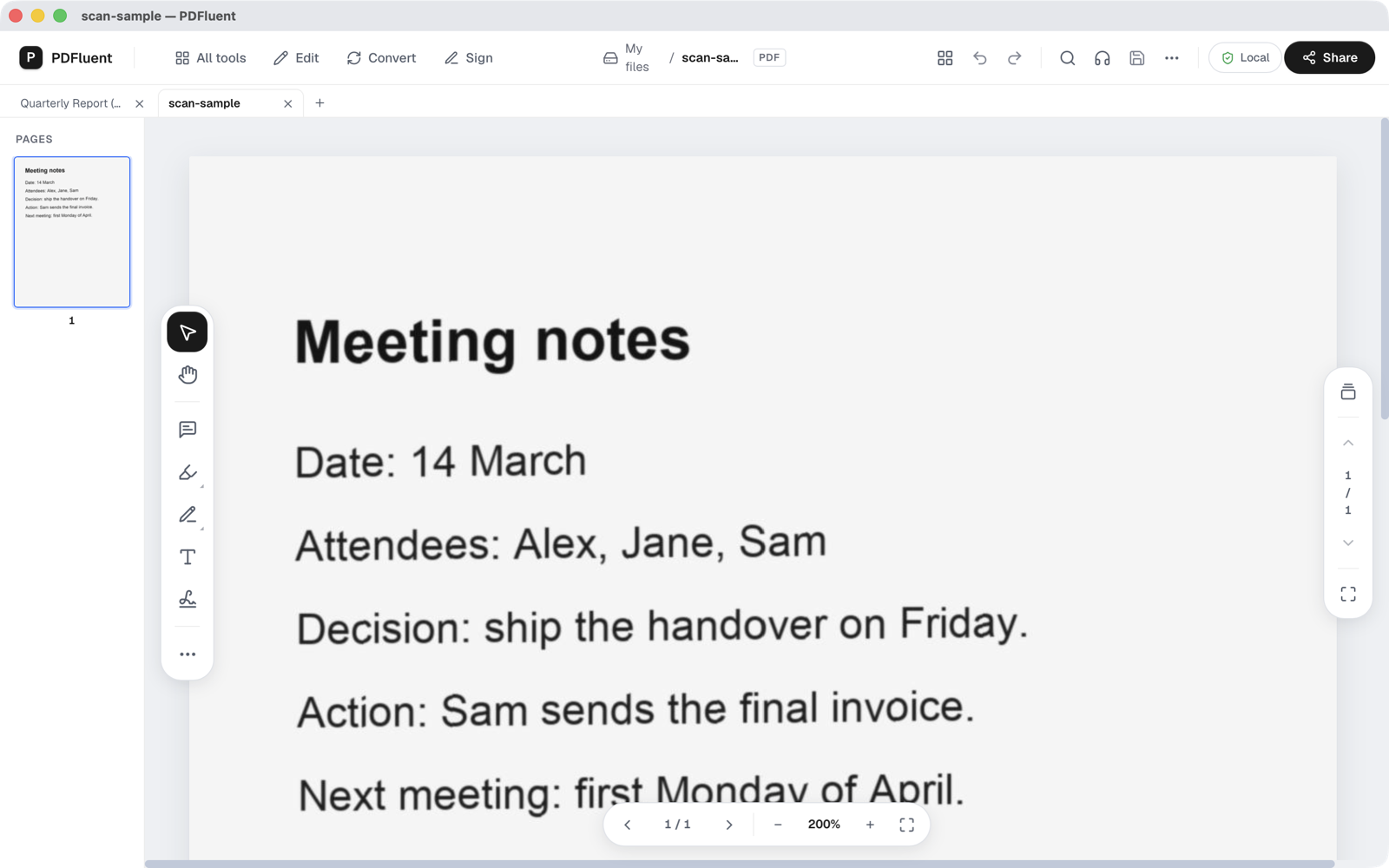
If dragging over the page selects nothing, the page is likely a scan. The words are part of the image, so there is no text to copy yet.
Run OCR first, then copy
Our sample "Meeting notes" scan had no text to select. Run OCR on the scanned PDF first. OCR is built in: nothing to download, six languages. After OCR the text is searchable and copyable, and the steps above work. The guide on making a scanned PDF searchable shows how.

Free, at home and at work
PDFluent Editor is free for everyone, including commercial use. There is no licence key, no trial, no tier and no subscription, and you do not need an account. On a Mac, documents are processed on your computer and the editor works without an internet connection.
Frequently asked questions
Why can't I select text in my PDF?
The page is most likely a scan, which is a picture of text. There is no text on it to select. Run OCR on the file first, and the text becomes searchable and copyable.
How do I copy text from a scanned PDF?
Run OCR on the scanned PDF in PDFluent Editor. OCR is built in, with nothing to download. After OCR, drag across the text and click "Copy text".
Does the copied text keep its formatting?
We only checked pasting as plain text, so we cannot say if fonts or layout carry over. In our test, lines from a selection over two lines were joined with no space between them, so check line ends after pasting.
Is PDFluent Editor free?
Yes. It is free for everyone, including commercial use. There is no licence key, no trial, no tier and no subscription.
Do I need an account?
No. You do not need an account to use PDFluent Editor.
Does it work offline?
On a Mac, yes. Documents are processed on your computer and the editor works without an internet connection.
Keep reading
Building software? Get the SDK.