How to highlight text and add a comment in a PDF
Open the PDF in PDFluent Editor, click "Highlight" in the tool rail on the left and drag across the text. To add a comment, click the speech-bubble tool ("Note"), click the page where the note belongs, type your text and press "Save". Then save the file with Command-S. The editor is free for everyone, including commercial use, and you do not need an account.
You are reading a report and one sentence matters more than the rest. Or a number looks wrong and you want someone to check it before the file goes out. Printing it and reaching for a marker works, but then the remark lives on paper and not in the PDF.
This guide shows how to highlight text and add a comment in a PDF with PDFluent Editor 1.1. It uses the real labels from the app, a sample quarterly report, and ends with a check that both marks are really in the saved file.
PDFluent Editor is free for everyone, including at work. There is no account to create. Version 1.1 is available for macOS and Windows.
When to highlight and when to comment
A highlight says: look here. It marks a sentence or a few words in colour, and the reader sees at a glance what you found important. It carries no words of its own.
A comment says why. It is a small sticky note on the page with your own text in it, such as a question or a request. Use it when the mark alone would leave the reader guessing.
Often you want both: highlight the sentence, then put a note beside it. That is what the steps below do. PDFluent Editor can also underline and strike through text, draw freehand and attach a file, but this guide sticks to highlights and comments.
PDFluent Editor is free for everyone, including commercial and business use. No account is needed. Download it, open the PDF and start marking.
Highlight text and add a comment, step by step
The steps use PDFluent Editor 1.1 on macOS and a 6-page sample called Quarterly Report (sample). The goal: highlight one sentence on page 1 and leave a note for a colleague beside it.
Open the file
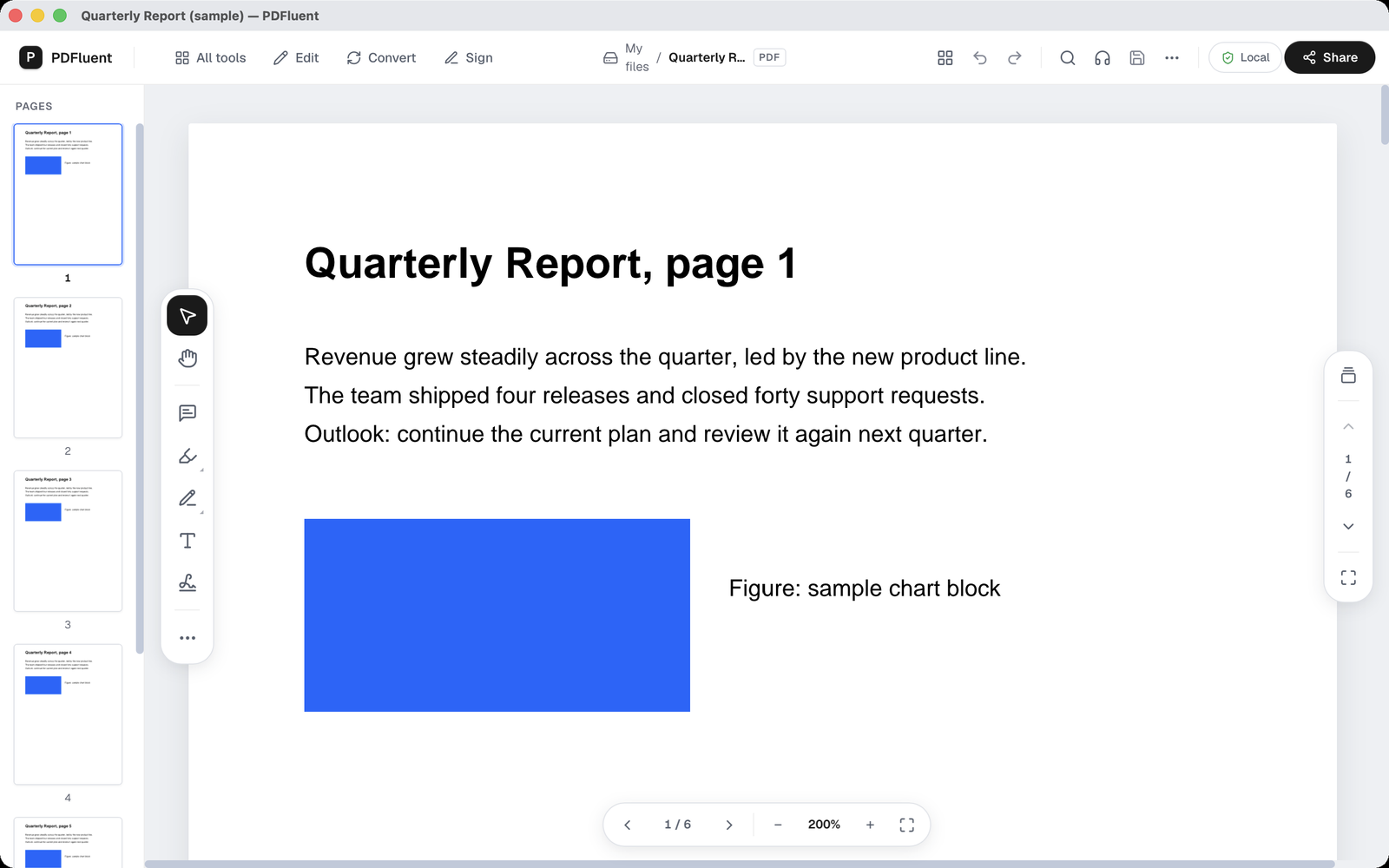
Open the PDF in PDFluent Editor. On the left of the page sits a floating tool rail. From top to bottom it holds a select arrow, a hand, a speech-bubble tool, a marker, a pen, a T for text, a signature tool and a button with three dots for more.
Choose Highlight
Click the marker icon in the tool rail. Its tooltip reads "Highlight". The button turns dark, which means the tool is active. The icon also has a tiny arrow in one corner.
Drag across the text
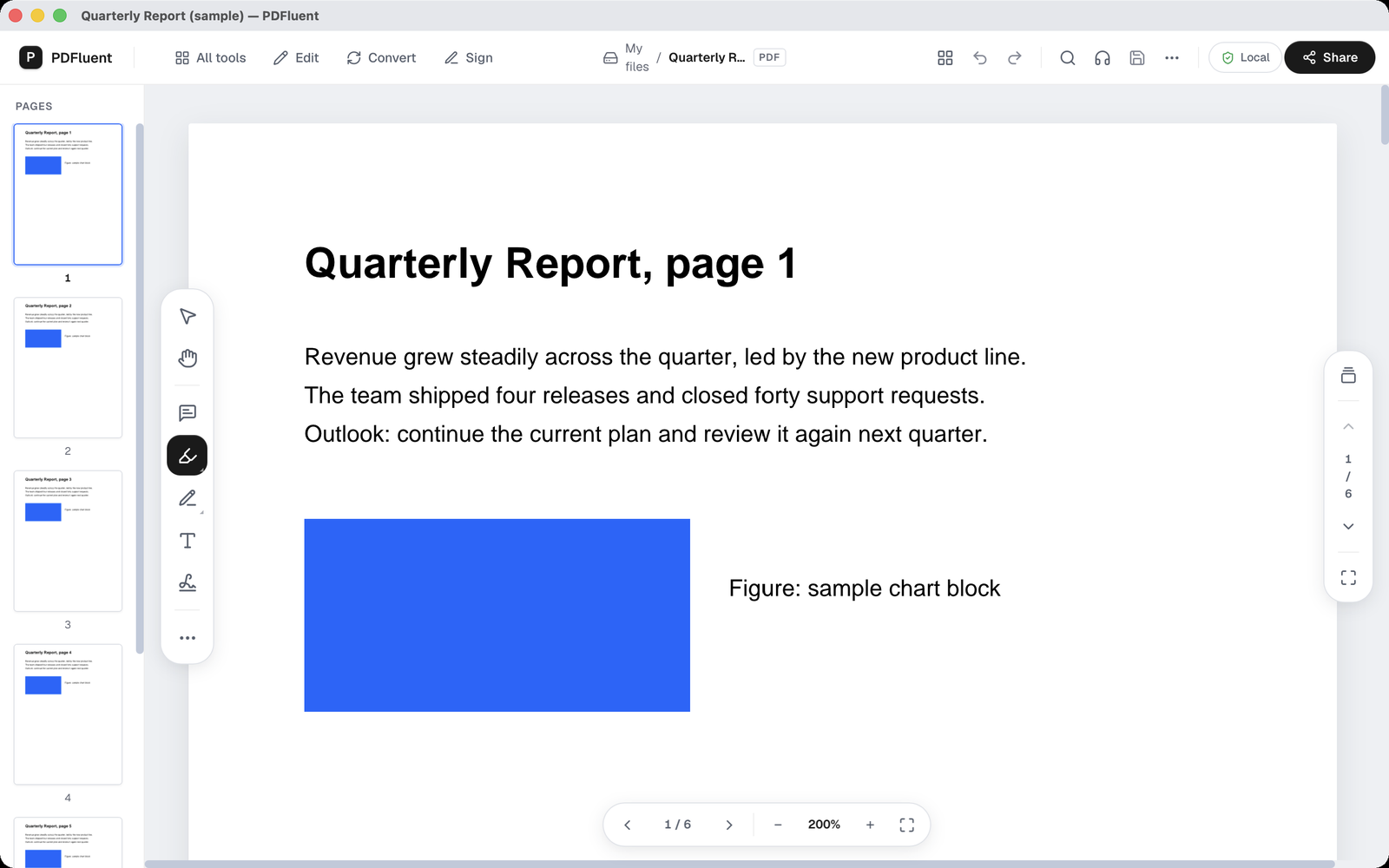
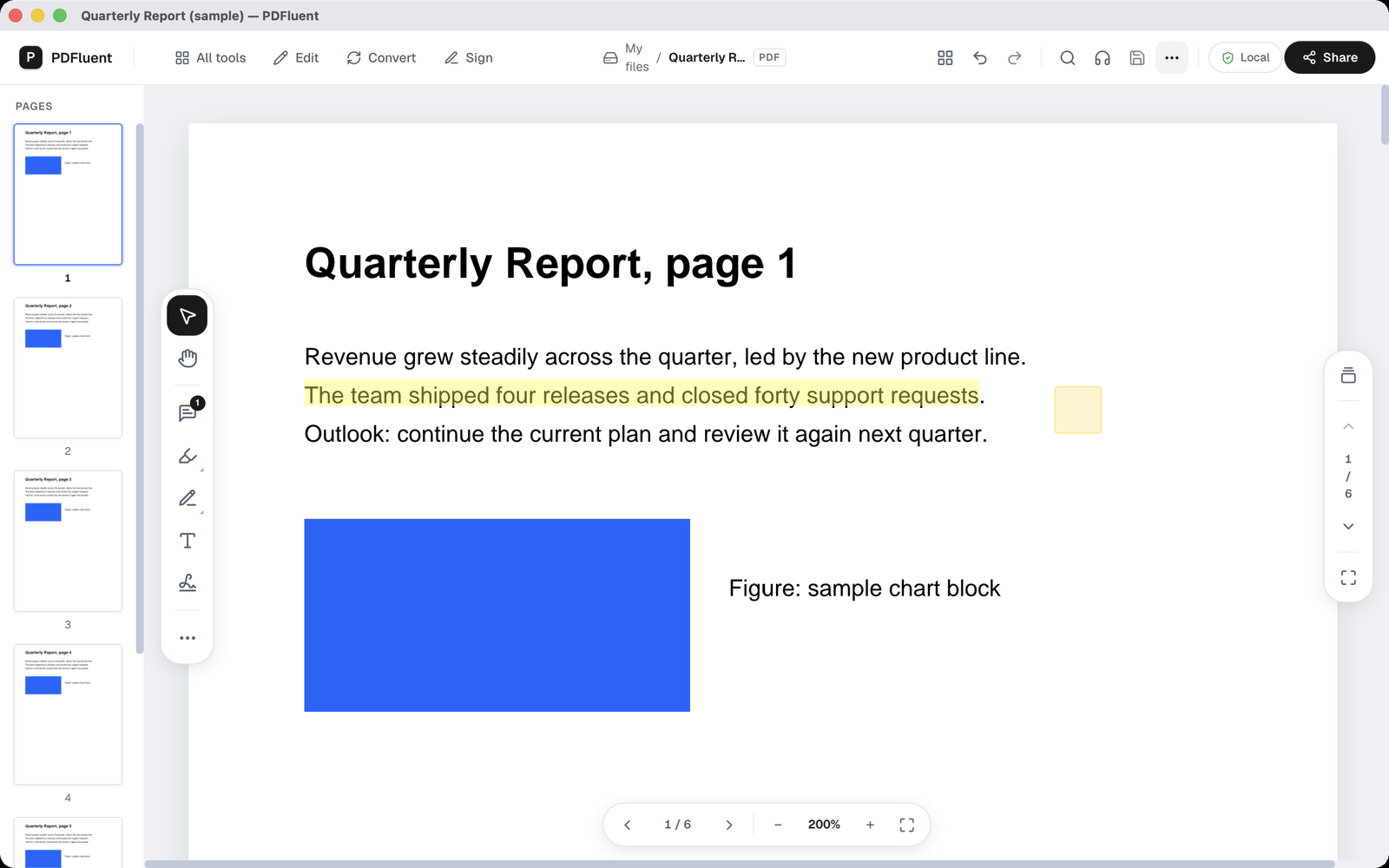
Drag the mouse across the words you want to mark. In the example, the sentence The team shipped four releases and closed forty support requests. turned yellow. After one highlight, the tool switches back to the select arrow. The title bar now shows an asterisk, which means there are unsaved changes, and a small green dot appears next to the PDF label.
Switch to Note
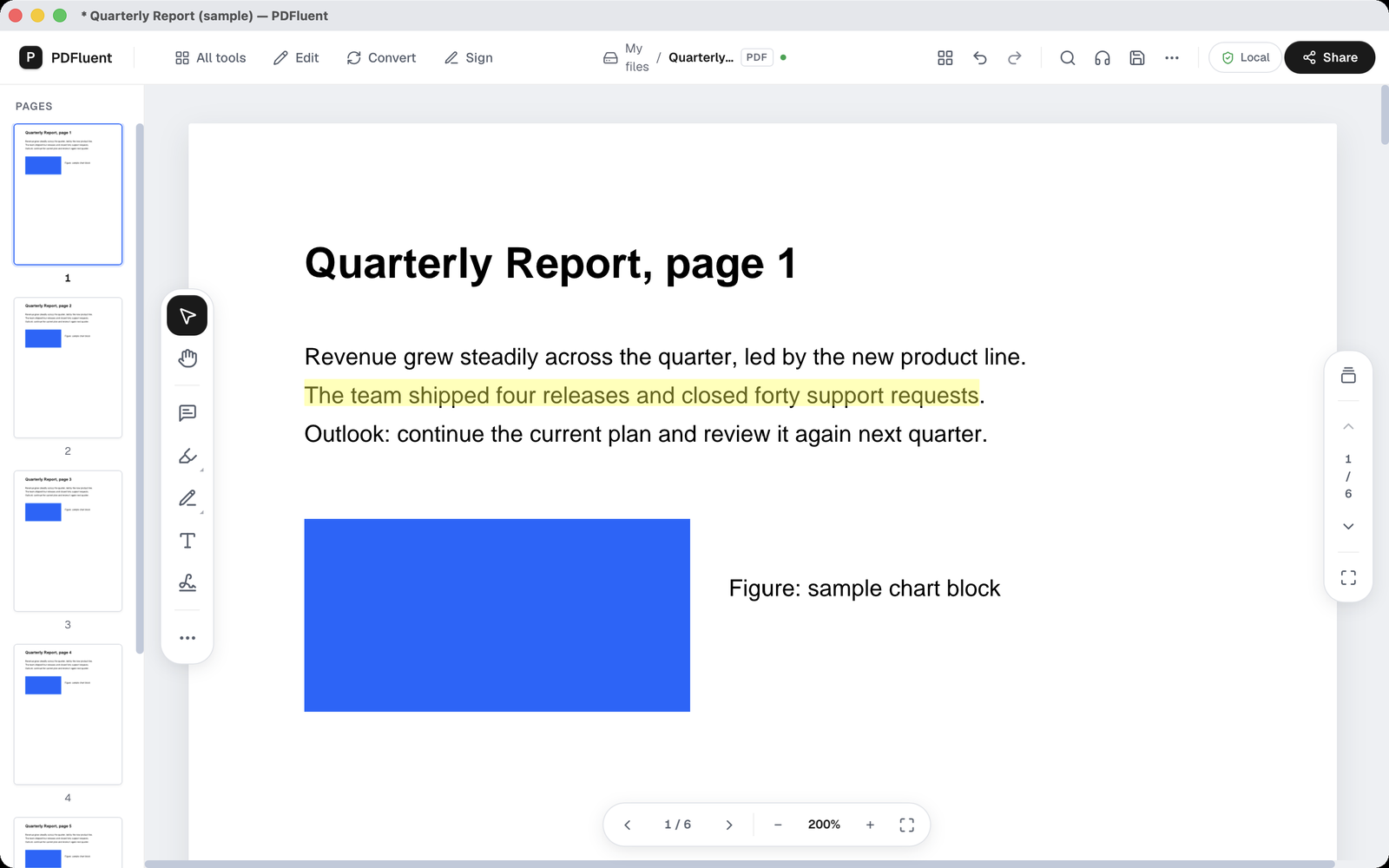
Click the speech-bubble tool in the rail. Its tooltip says "Note". A message at the bottom of the window reads "Note mode. Click the page where the note belongs." Click the spot on the page where the comment should go. Here, that is right beside the highlighted sentence.
Type the comment
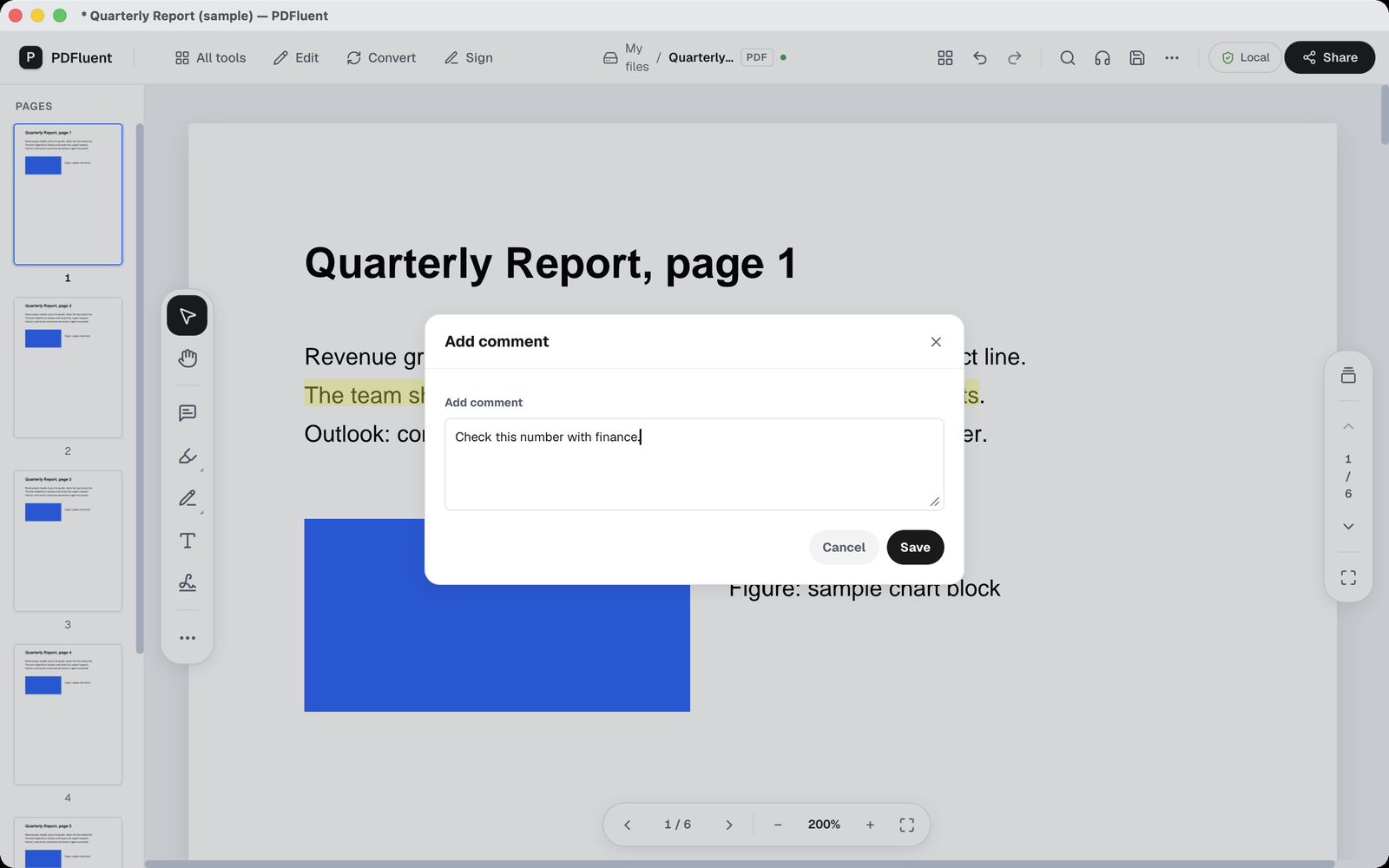
A dialog "Add comment" opens. It has one text field and two buttons, "Cancel" and "Save". Type your remark. In the example: Check this number with finance. Then press "Save". A small yellow sticky-note square appears where you clicked, and the Note tool in the rail gets a badge with the number 1.
Save the file
Press Command-S. The asterisk in the title bar disappears. The yellow highlight and the sticky note are both still on page 1. In a test, the saved PDF was read back with the PDFluent SDK: page 1 held two annotations, a highlight and a sticky note with the text Check this number with finance. So the marks are in the file, not only on your screen.


PDFluent Editor is free for everyone, including commercial use, and your documents stay on your computer.
What to know before you start
- Highlights and comments sit on top of the page as annotations. They do not change the words of the document itself.
- Besides "Highlight", the editor can also mark text with "Underline" and "Strikethrough".
- The Highlight tool switches back to the select arrow after each highlight, so click it again for the next sentence.
- A note goes exactly where you click in Note mode, so pick the spot before you click.
- Annotations can be deleted or edited again later.
- The name attached to your comments is set under "Comment name" in the three-dot menu at the top right. The editor says: "This name is stored locally and used for comments and document events on this device."
- Saving writes the annotations into the file. Keep a copy of the original if you want a clean version as well.
How to check the result
Before you send the file on, take a minute to check it.
- Look at the title bar. No asterisk means everything is saved.
- Close the file and open it again in PDFluent Editor.
- Find the yellow highlight on the sentence you marked.
- Find the yellow sticky note in the spot where you clicked.
- Keep the unmarked original somewhere safe, in case you need it.
If something is missing after reopening, the file was probably not saved. Mark the text again and press Command-S before you close it.
Free, and on your own computer
PDFluent Editor is free for everyone, at home and at work, including commercial use. No account is needed. Version 1.1 runs on macOS and Windows.
On macOS, documents are processed on your computer and the editor works without an internet connection. The report you mark up does not have to go to a website first.
Frequently asked questions
How do I highlight a PDF on a Mac for free?
Open the PDF in PDFluent Editor, click "Highlight" in the tool rail on the left and drag across the text. The text turns yellow. Press Command-S to save. The editor is free, including for commercial use.
Can I underline or strike through text instead?
Yes. PDFluent Editor can highlight, underline and strike through text. The labels in the app are "Underline" and "Strikethrough".
How do I add a comment to a PDF?
Click the speech-bubble tool, labelled "Note". Click the page where the note belongs. In the "Add comment" dialog, type your text and press "Save". A yellow sticky note appears on the page. Then save the file with Command-S.
Do highlights and comments change the text of the PDF?
No. They are annotations on top of the page, and the words of the document stay as they were. They are saved into the file, so keep a copy of the original if you also want an unmarked version.
Can I remove a highlight or a comment again?
Yes. Annotations can be deleted or edited again later.
Is it free to use at work?
Yes. PDFluent Editor is free for everyone, including commercial and business use.
Do I need an account, or do I have to upload the file?
No account is needed. On macOS, documents are processed on your computer and the editor works without an internet connection, so the file does not go to a website.
Keep reading
Building software? Get the SDK.